The way PC games came in a box.
DiscWright turns a GOG offline installer into a real game disc — one that carries the game’s own icon and title in This PC, and opens a menu when you double-click it. It prints the cover and the disc face, burns the disc, and then checks every file on it.
Version 0.9.2 · Free and MIT-licensed · Windows 10 or 11 · Nothing to install
Why
GOG sells DRM-free installers. You own them outright, you can back them up, and
nothing phones home. But they sit in a folder called
setup_alan_wake_1.1_music_lang_fix_(80728).exe, and that is not quite
the same as a shelf.
Burn one with any normal ISO tool and Windows shows you DVD RW Drive (E:). Burn one with DiscWright and Windows shows you the game.
What you get
The game’s icon
In This PC, not a generic disc. Give it a .ico, or any PNG or JPG
and DiscWright builds a proper multi-size icon for you.
The game’s name
As the drive label, read out of the installer and yours to edit. You see exactly what This PC will display before you build.
A menu on double-click
Play, Install, Manual, Extras, Exit — over your own artwork. Play knows whether the game is installed yet and greys itself out until it is.
Music, if you want it
One track per disc, playing behind the menu. Along with a manual, an Extras folder, and anything else you drop at the disc root.
A cover and a disc face
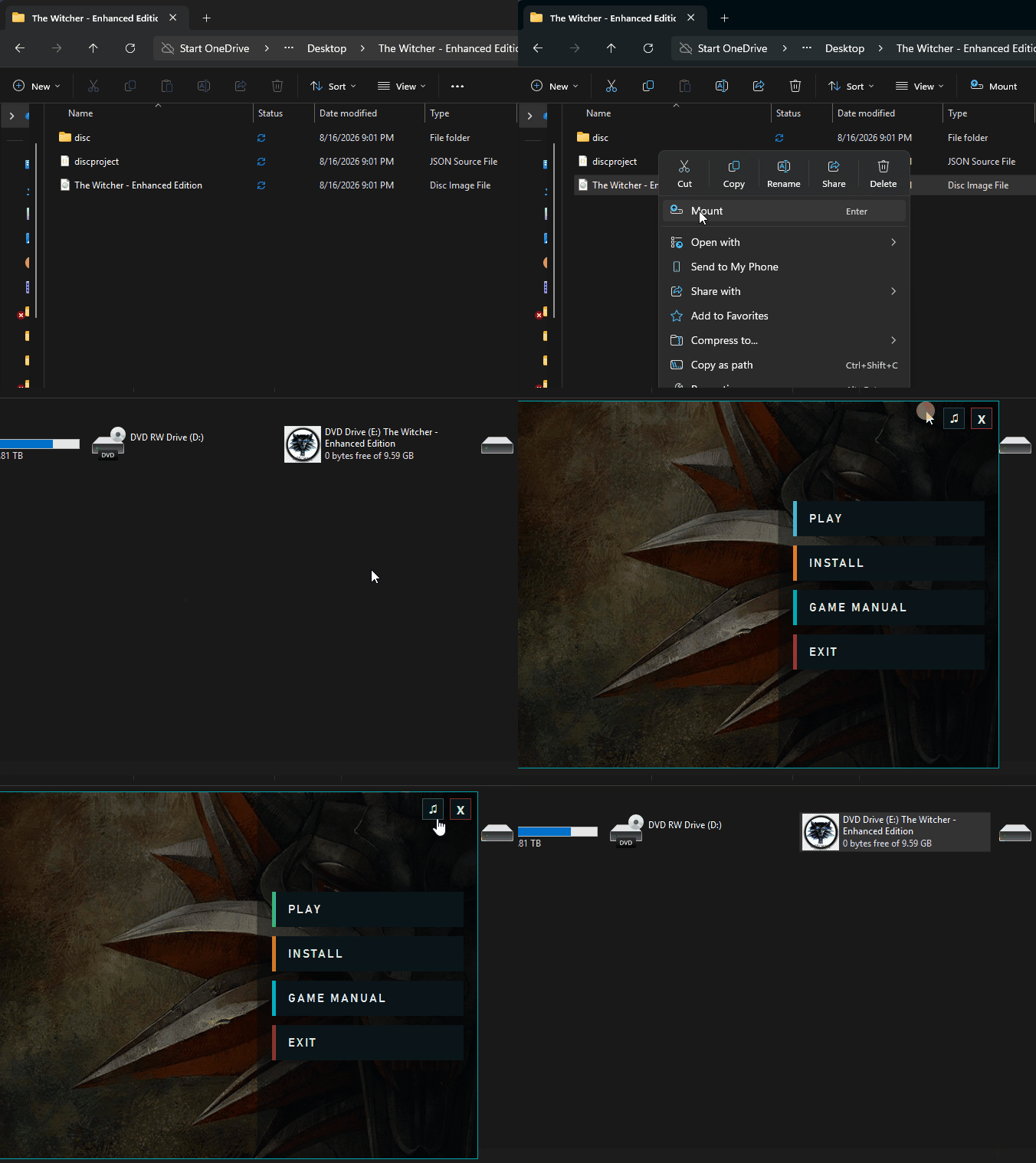
The case wrap as a PDF at its true size with crop marks, the disc face as a 300 dpi image with the hub left clear. Artwork you already have is printed exactly as it is: nothing added, nothing cropped off, nothing stretched.
Burned, and checked
It writes the disc below the drive’s top speed, where cheap media survives, then reads every file back off it and compares it with what was built. A burn that ends without an error is not the same thing as a disc holding the right bytes.
How it works
-
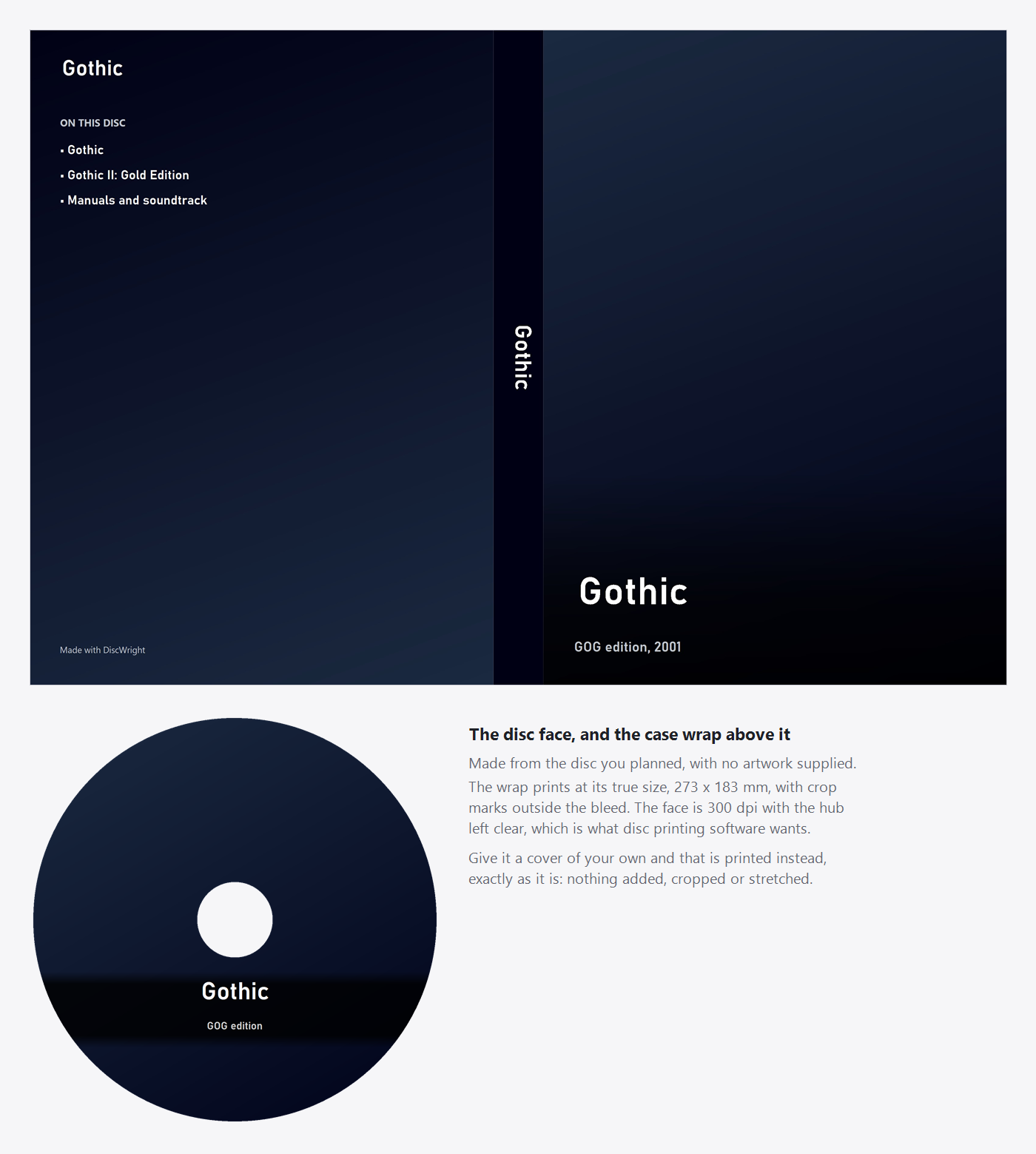
Add the games
Each one a GOG folder holding
setup_*.exeand its.binparts. DiscWright reads the name out of the installer and tells you which blank the lot of them needs. DLC, expansions, patches and mods go on the game they belong to.A game does not have to come from GOG. Point it at any folder of game files and it goes on the disc as it stands, subfolders and all; DiscWright asks which executable installs it, or gives the menu an Open Folder button when nothing does.
-
Choose how it looks
Disc label, icon, background artwork, which side the buttons sit on, which buttons you want. Preview menu renders it without building anything, so you can nudge the layout without waiting on a rebuild.
-
Build the ISO
Pick an output folder and press BUILD ISO. Every build writes a project file next to it, so months later you can open the disc back up, change one thing and rebuild.
-
Test it before you burn
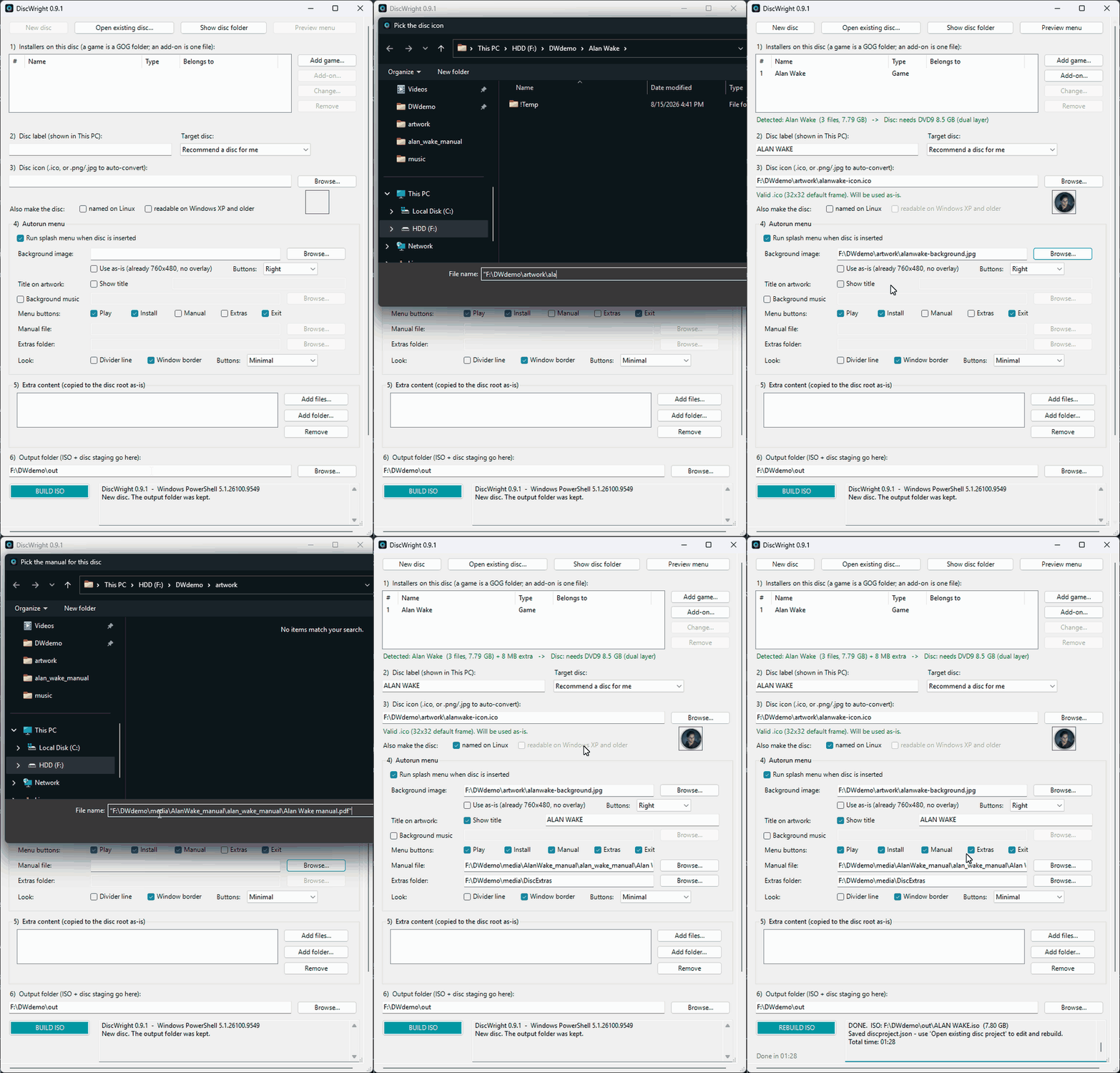
Right-click the
.isoand choose Mount. Windows gives you a virtual drive with the real icon, the real label and the real menu — exactly what the burned disc will do, at no cost in discs.
More than one game on a disc
With two or more, the menu opens on a chooser and picking one leads to its own screen. An add-on — DLC, an expansion, a GOG patch, a mod — is filed under the game it belongs to, where it becomes an extra Install button on that game’s screen rather than another entry in the chooser. Add-ons stay greyed until the game itself is installed, because applying a patch to nothing produces an error from GOG’s installer several clicks later, which is a poor place to learn the rule.
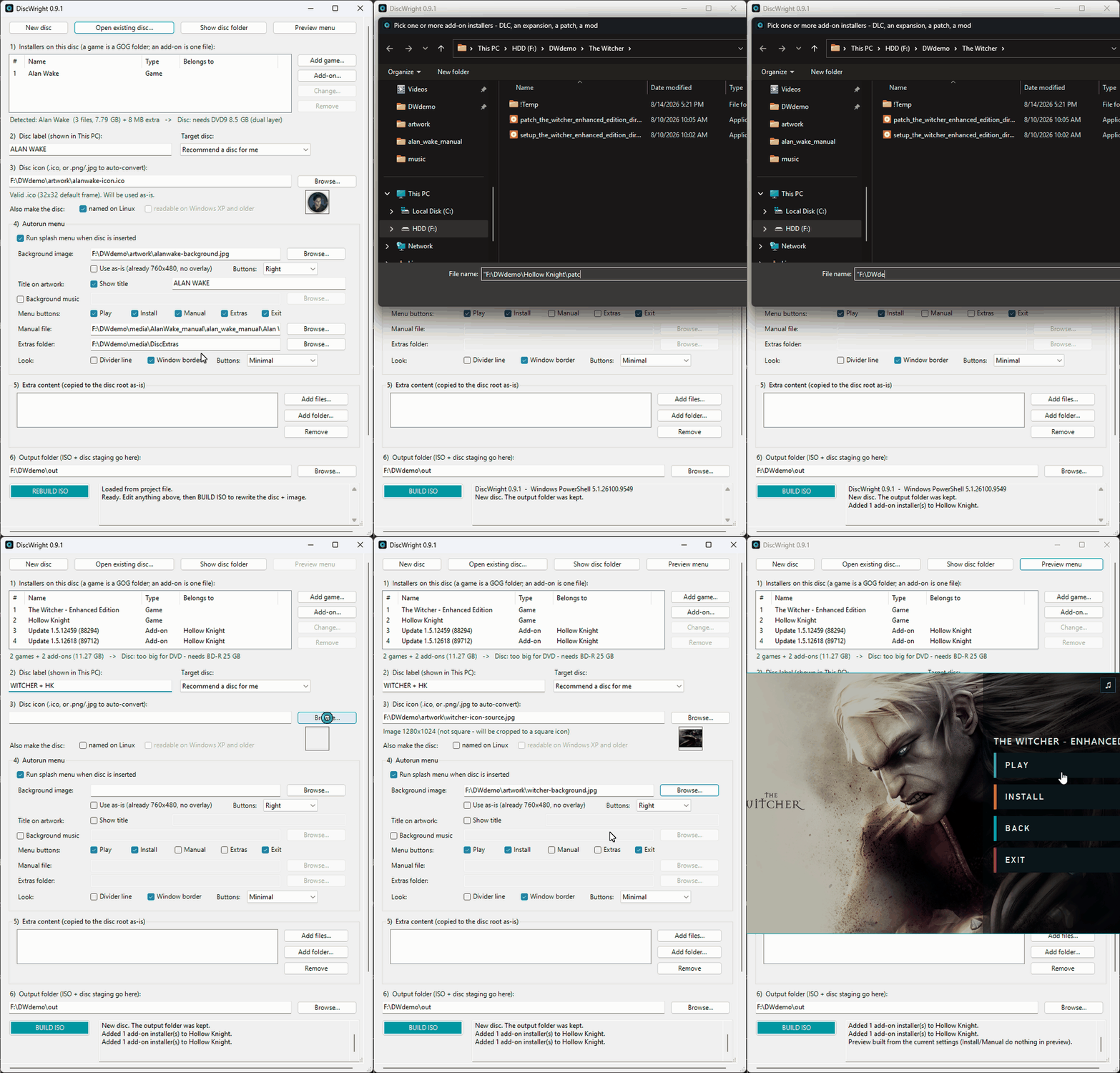
A one-game disc shows neither the chooser nor Back — it has nothing to choose.
What ends up on the disc
No black box. The disc is a plain folder tree you can read in any file manager, and the numbering puts the folders in the same order as the menu.
E:\
├─ autorun.inf              drive icon, drive label, menu launcher
├─ MetroidvaniaNight.ico    named after the disc, so Explorer cannot cache
│                           the previous game's icon against the same path
├─ AUTORUN\
│   ├─ menu.hta             the menu itself
│   ├─ bg.png               composed background
│   └─ music.mp3            optional
├─ Games\
│   ├─ 01 - Hollow Knight\
│   │   ├─ setup_hollow_knight_....exe
│   │   ├─ Add-ons\         its patches, expansions and mods
│   │   └─ Extras\          this game's own manual and bonus content
│   └─ 02 - Ori and the Blind Forest\
│       └─ setup_ori_....exe
└─ Extras\                  the disc-wide ones, for games with none of their own
One game on its own skips the Games\ folder and sits at the root.
What you need
Windows 10 or 11
With Windows PowerShell 5.1 — the one that already ships with it. DiscWright checks on startup and tells you if you launch it the wrong way.
A blank disc, and a burner
Only if you want a disc rather than an image. DiscWright burns it and then reads every file back off the disc to check it against what was built. Any other burning tool works just as well on the ISO it writes.
There is nothing to install. It is a folder of scripts that runs from wherever you
put it — Desktop, Documents, a USB stick. Download it, unblock the ZIP
before extracting, and double-click Run DiscWright.cmd.
| up to 0.68 GB | CD-R 700 MB |
| up to 4.37 GB | DVD5 4.7 GB |
| up to 7.95 GB | DVD9 8.5 GB dual layer |
| up to 23.3 GB | BD-R 25 GB |
| up to 46.6 GB | BD-R DL 50 GB |
| up to 93 GB | BD-R XL 100 GB |
Stated up front, rather than discovered later
-
Windows will say “Windows protected your PC.” That is
SmartScreen, on the first run of an unsigned launcher that came from the internet.
Treat that prompt as a reason to go read the code, not as a formality to click
through — which is the whole point of shipping one readable script instead of
an
.exe. -
The menu needs
mshta.exe. It ships with Windows 11, but plenty of hardened environments disable it. The disc icon and label still work; only the menu is affected. - AutoPlay has to be allowed for the menu to launch on insert. Double-clicking the drive still opens it either way.
- One game bigger than one disc cannot be split. Several games are packed across a set happily, but a single installer larger than the blank you picked is refused by name, and the roadmap records why.
-
Disc labels are limited to what Windows can encode. AutoRun reads
autorun.infin the system codepage and has no Unicode mode at all, so accented Latin is fine and Cyrillic, Greek and CJK are not.
Not all of these are permanent. The roadmap says which are being worked on and which are settled.
Where to go
Most of what is on the roadmap came from someone asking for it. Four different things want four different places, so here is which is which.
Show off a disc you made
Covers, labels, printed discs, a shelf of them. This is the one I most want to see — the whole point of the tool is that the result is worth looking at.
Ask for a feature
Something it should do and does not. Say what you were trying to make and what got in the way — when two people ask for the same thing, it moves up.
Report something broken
A build that fails, a disc that comes out wrong, a menu that will not open. Bring the log from the bottom of the window if you have it.
Follow what is changing
Every release says what moved and why. Announcements is the short version, the changelog is the long one.